

This guide covers a more advanced workflow that requires basic understanding of AI prompting and Superwhisper’s features. If you’re new to Superwhisper, start with the built-in modes first.
Overview
To customize a built-in mode, copy its AI instructions into a new Custom Mode and adjust them there. Your customized version won’t receive updates when the original mode improves, but you get a tailored mode without starting from scratch.Step by step
1
Create a Test Recording
- Create a new mode using the built-in mode you want to customize
- Make a quick test recording (a simple “This is a test” works fine)
- Let it process through AI
2
Access the Original Instructions
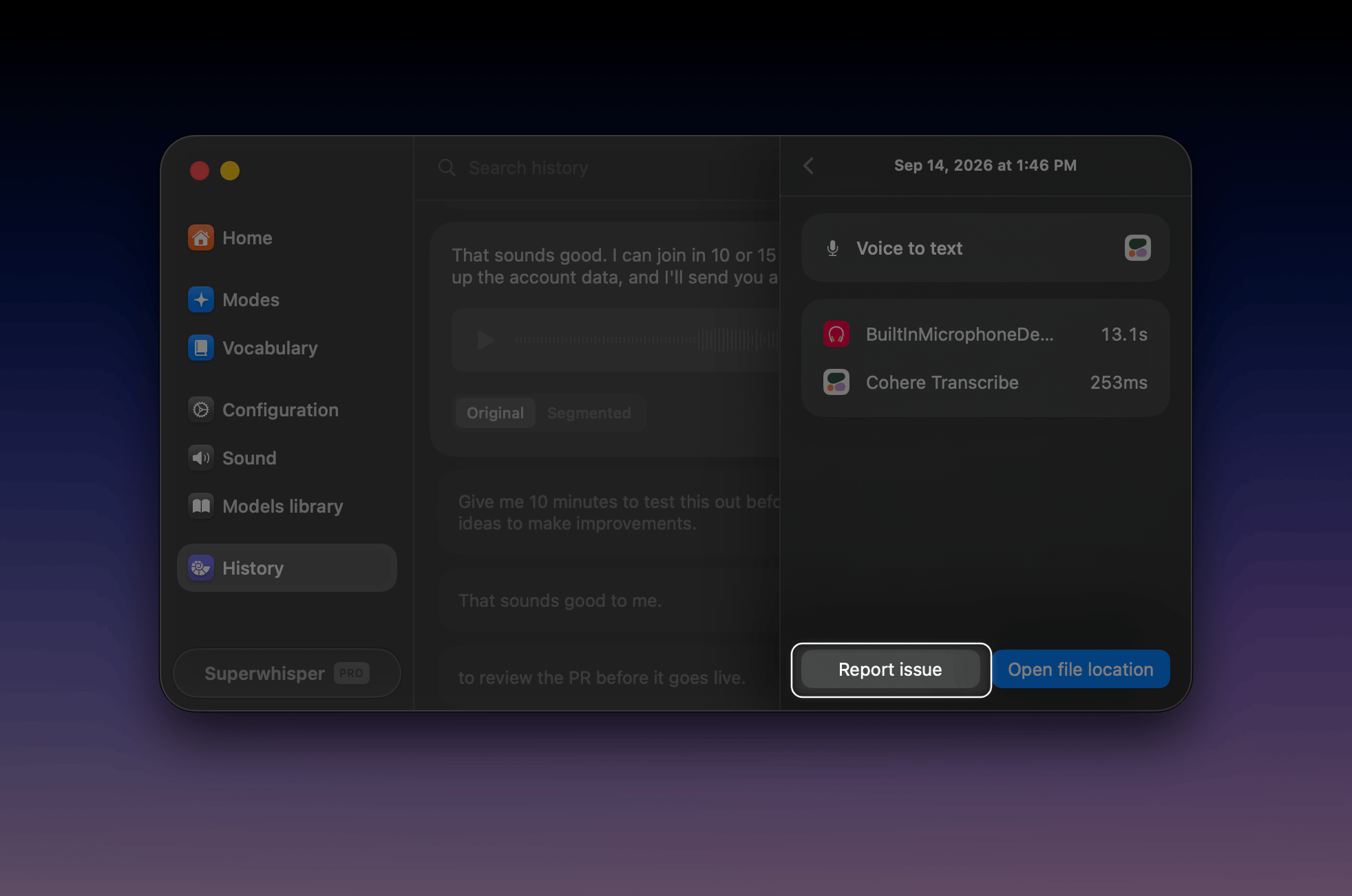
- Open the History tab
- Find your test recording
- Look for the prompt box in the bottom right sidebar
- Select and copy all text
- Paste into a text editor for better visibility
3
Extract What You Need
- Find the
Instructionstitle - Copy the content in this section without including
User Message - If present, note any examples of correct or incorrect behavior
4
Create Your Custom Version
- Create a new Custom Mode
- Paste the copied instructions
- Add any examples from the original mode
- Make your desired adjustments