

Overview
Superwhisper can transcribe external audio and video files: meeting recordings, lectures, interviews, voice memos, and more. The file processes through your currently active mode, so the result uses that mode’s voice model and AI formatting.For the best results, use:
- MP3 audio files
- MP4 video files
- Mono WAV files with a 16 kHz sample rate
1. Transcribe from the menu bar
1
Verify the active mode
Make sure your preferred Superwhisper mode is active
2
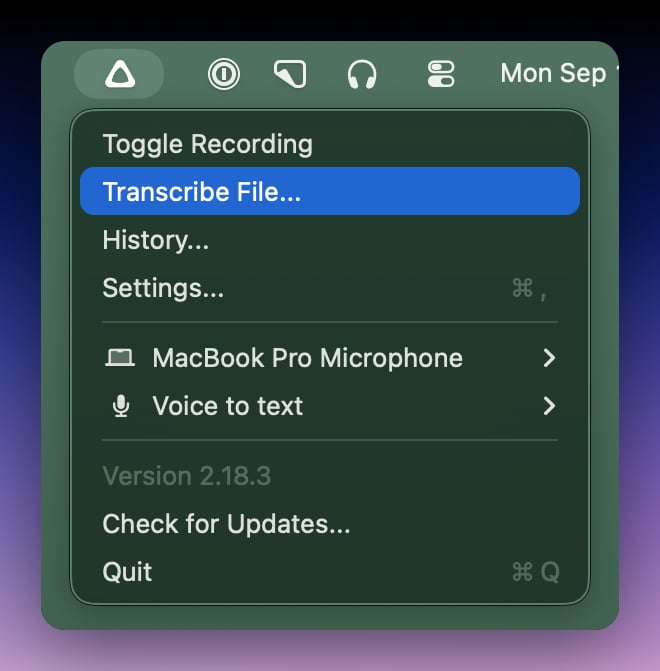
Open the menu
Click Superwhisper’s menu bar icon
3
Select Transcribe File
Choose Transcribe File from the menu
4
Choose the file
Browse and select the audio or video file to transcribe
On Windows, use this method: click the Superwhisper tray icon and choose Transcribe File. The two methods below are macOS only.
2. Transcribe from Finder (macOS)
1
Locate the file
Find the audio file in Finder
2
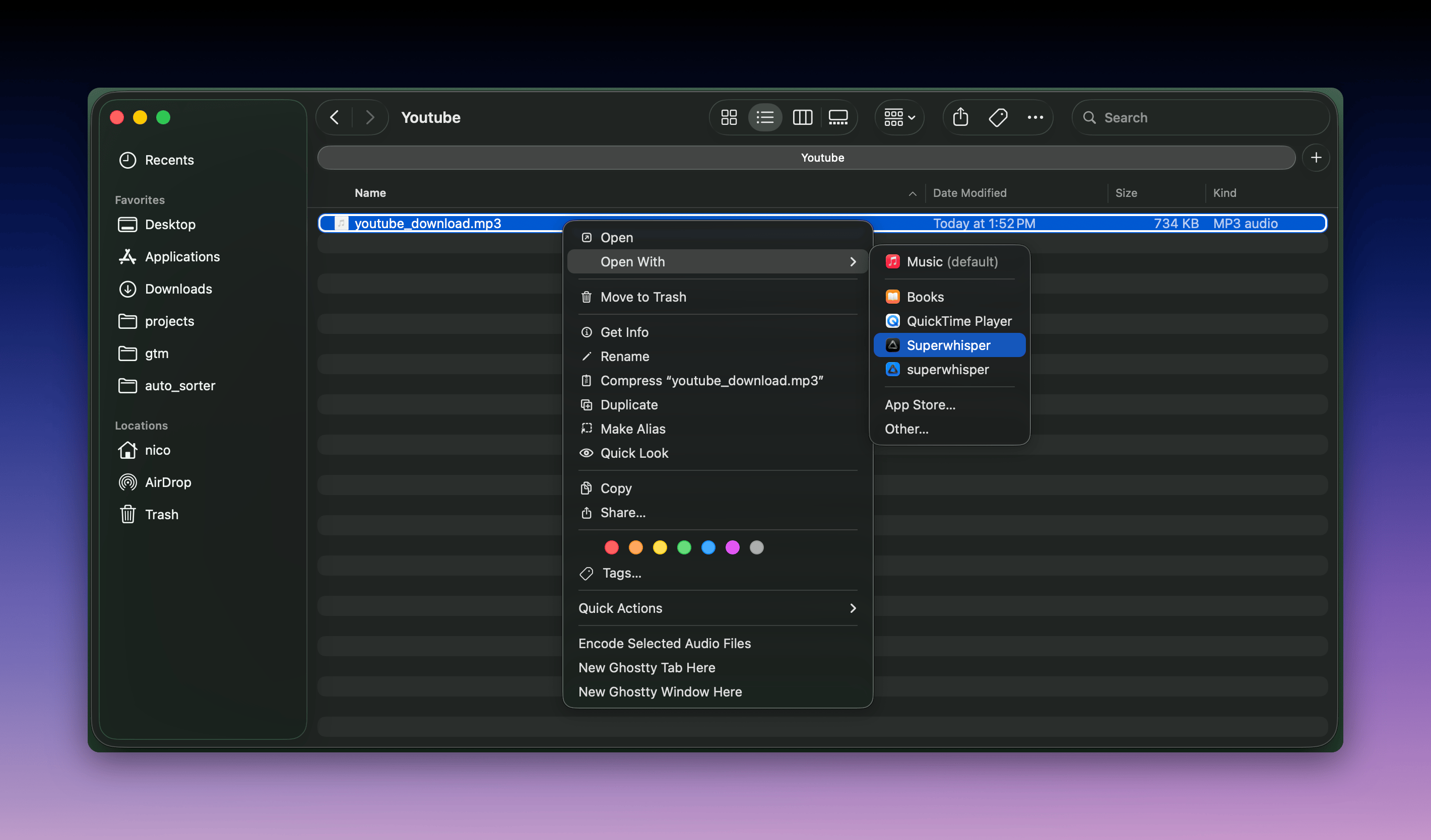
Right-click it
Right-click the file to open the context menu
3
Open with Superwhisper
Select Open With → Superwhisper
- If Superwhisper isn’t listed, choose Other and select the application