

Setting up billing
Initial billing configuration
From your dashboard, select the Billing tab to set up your billing information and create your subscription.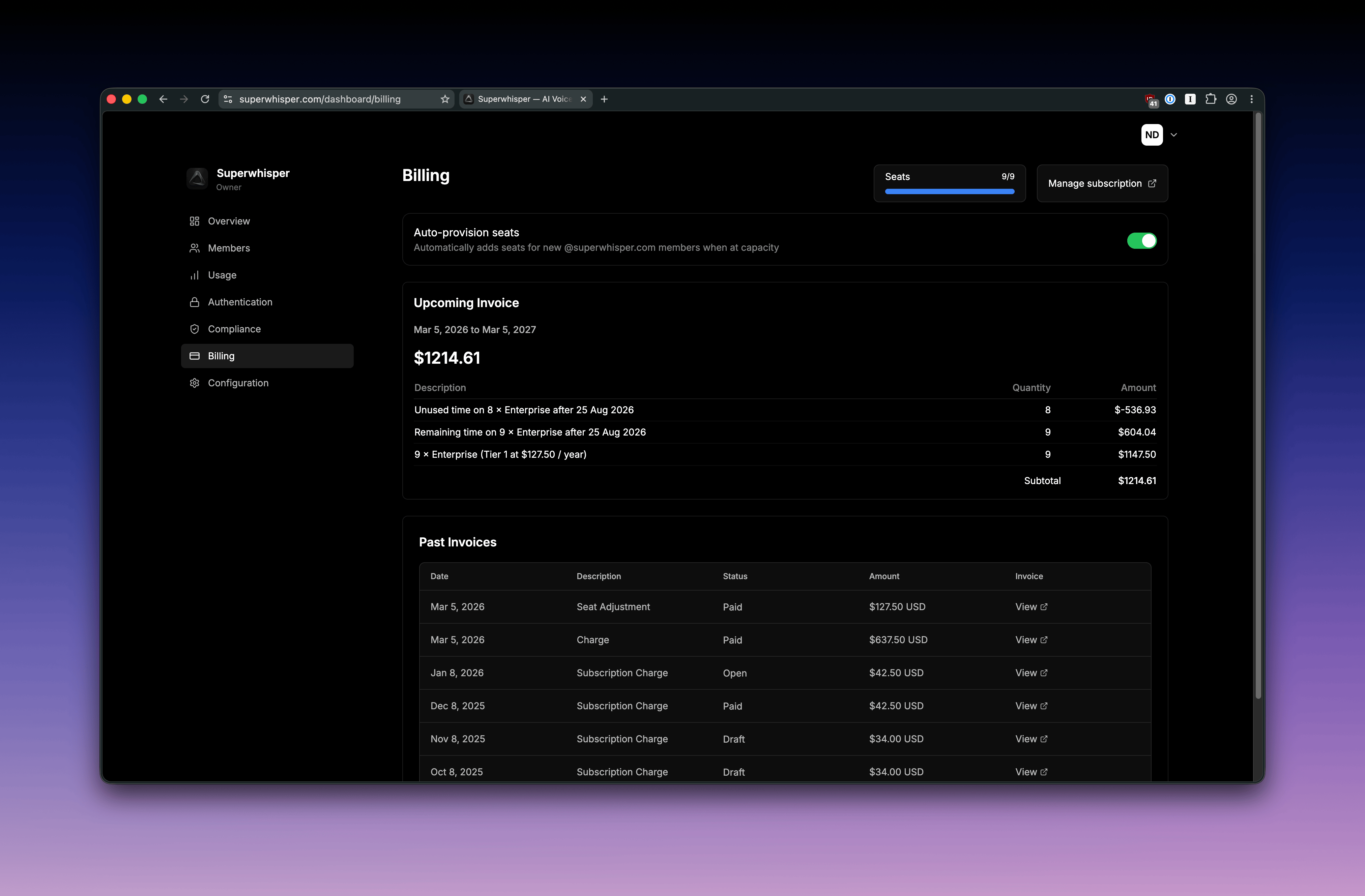
Seat-based pricing
Superwhisper Enterprise is seat-based:- Choose monthly or yearly billing when creating your subscription
- You’re charged for the number of seats purchased
- Purchase more seats to invite additional members
- Remove seats you aren’t using
Managing your subscription
- View your current seat count and usage in the Billing tab
- Add or remove seats as your team size changes
- View billing history and upcoming charges in the Billing tab
Seat auto-provisioning
Once your subscription is created, toggle seat auto-provisioning in the Billing tab. When enabled:- New seats are added automatically when members try to join at capacity
- New team members can join without admin intervention
- No onboarding delays when seats run out
Keeping costs under control
- Automate offboarding: connect SCIM deprovisioning so departing employees are removed automatically and their seats freed
- Quarterly seat audit: review the Members tab and remove anyone who hasn’t activated or hasn’t used the app in 60+ days
- Forecast before you add: use the in-dashboard billing calculator before bulk-inviting a new team
- Enable seat auto-provisioning: skip manual seat purchases if you’re scaling fast and don’t want to gate hires on them
Invoices and VAT
Download invoices from the Billing tab in your dashboard. To add a VAT ID or specific company details to your invoices, email enterprise@superwhisper.com with what should appear.Related
- Member Management: seat roles and the offboarding flow
- SCIM Provisioning: automate deprovisioning to free seats