

Key features
Custom Mode gives you:- Full control over the AI processing instructions
- Context awareness
- Flexible processing for any workflow
Additional settings
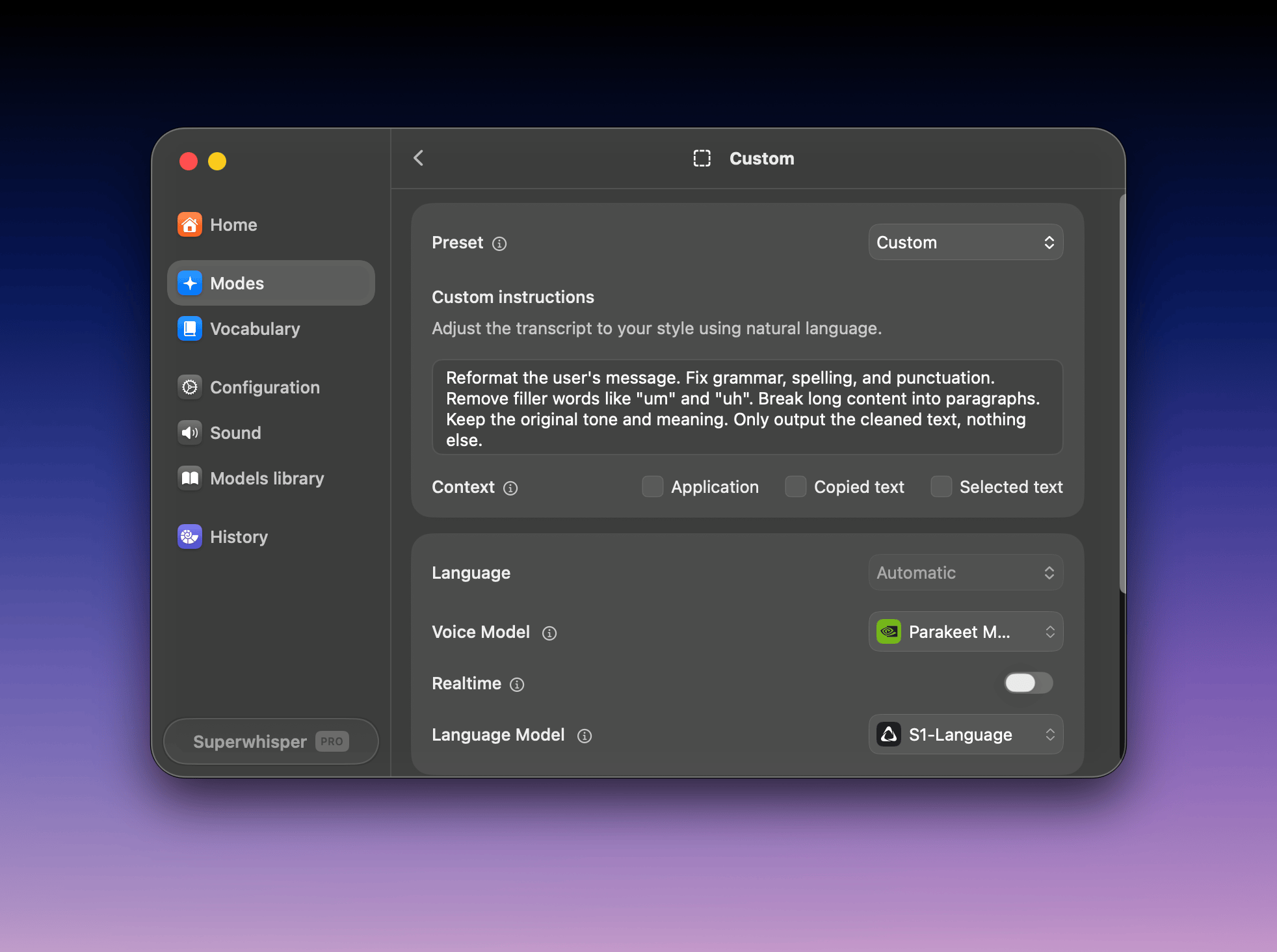
Custom instructions
The mode editor has a Custom instructions field. Describe the transformation you want in natural language; the AI applies it to every dictation in this mode.Instructions are empty by default. If left blank, the AI doesn’t know what task to perform and may give unexpected results.
Context awareness
The Context row in the editor has three checkboxes: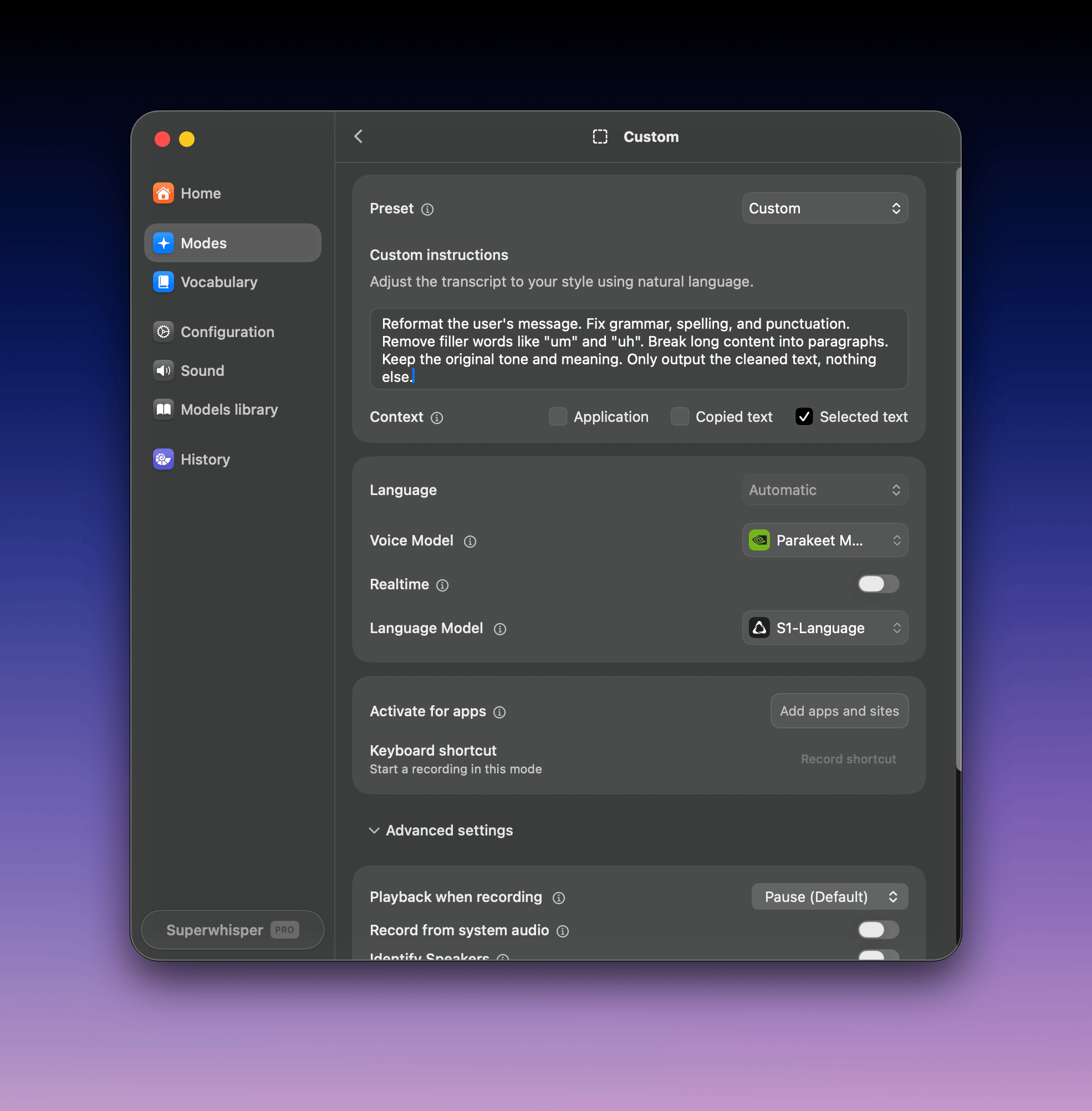
- Application
- Copied text
- Selected text
These toggles work identically to Super Mode context awareness features.
Prompting tips
Referencing Content
Referencing Content
When writing AI instructions for use in Superwhisper, you can direct AI’s attention to specific content using these naming conventions:
These titles let you create targeted instructions for AI. For example:
Instruct AI exactly which content to focus on and what to do with it. You can combine them in your instructions to create powerful workflows:
User Message- Contains your dictated text
Application Context- Includes the data from your active application window
Selected Text- Text you have selected when triggering your dictation
Clipboard Context- Contains the text you’ve copied
These titles let you create targeted instructions for AI. For example:
- “Translate the User Message to Spanish”
- “Based on the Application Context, suggest relevant code comments”
- “Format the User Message accordingly based on the content found in Clipboard Context”
Instruct AI exactly which content to focus on and what to do with it. You can combine them in your instructions to create powerful workflows:
Writing Effective Instructions
Writing Effective Instructions
1
Clear Purpose
Define your AI instructions by starting with a clear role or purpose statement. This sets the foundation for how the AI will process your content.
2
Requirements
Create a detailed list of specific requirements and expectations. Being explicit helps ensure the AI understands exactly what you need.
3
Structure
Organize your instructions using separate sections for different components. This modular approach makes your instructions easier to understand and modify.
4
Keep Simple
Write direct, straightforward instructions without unnecessary complexity. Clear communication leads to better results.
Add Examples
Add Examples
Examples help you teach AI exactly how to process your input and what kind of output you expect. You can add these directly in the Advanced Settings sidebar of your selected mode.Each example consists of two parts:
- Input field: Shows how you’ll phrase your requests
- Output field: Demonstrates your expected AI response
- Click “Add Example” to create your first example pair
- Fill in both the input and output fields
- Add more examples by clicking “Add Example” again
Adding 2-3 examples significantly improves AI’s understanding of your needs and leads to more accurate responses.