

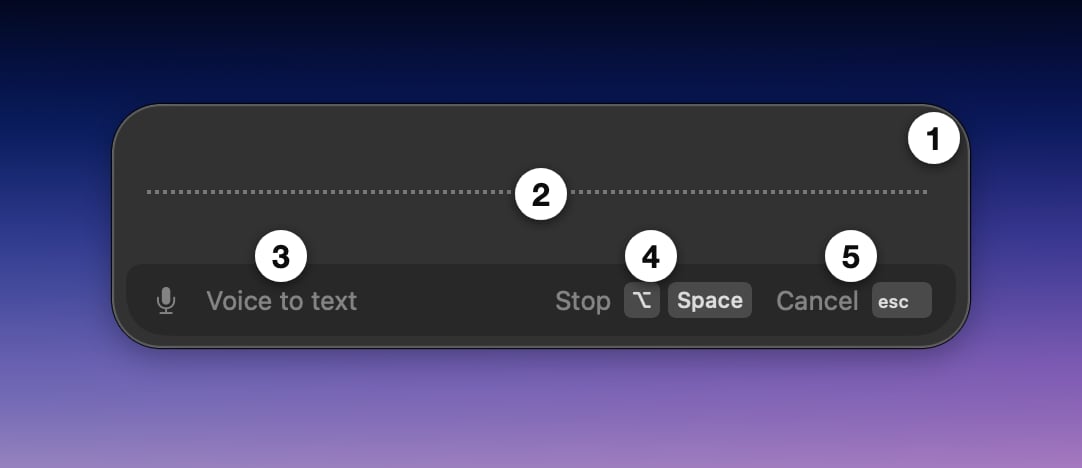
- Resize toggle: switch between the main and mini view
- Waveform: shows the audio your microphone captures in real time
- Mode display: your active mode. Click it to switch modes, or hold ⌥ ⇧ K (Option + Shift + K). In Super Mode, this area shows your current application or website context
- Stop: ends the recording and starts processing. Click it or press the same keyboard shortcut you used to start
- Cancel: discards the dictation. Click it or press esc. Recordings under 30 seconds cancel immediately; longer ones ask for confirmation
While recording
A moving waveform means your microphone is working: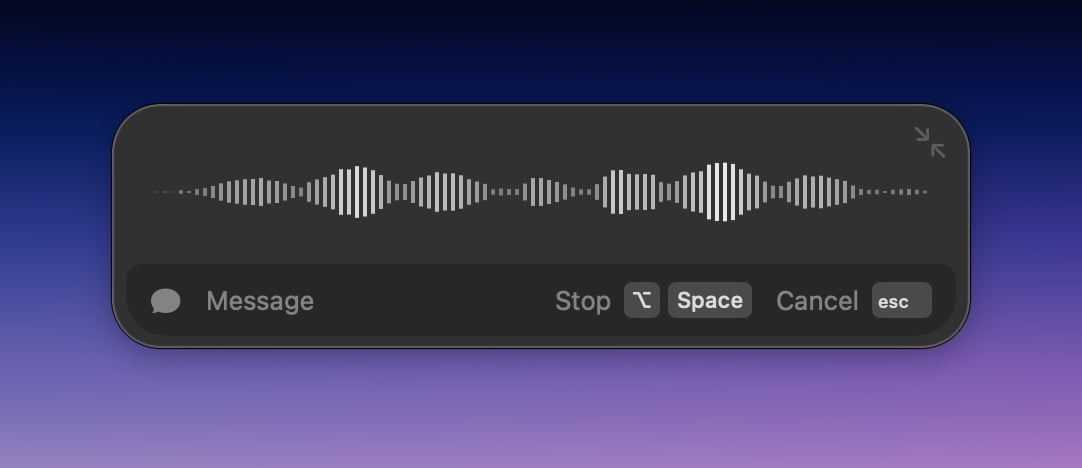
- Verify your selected input device in Superwhisper’s Sound tab
- Confirm microphone permission in System Settings → Privacy & Security → Microphone
Exception: with system audio capture, the waveform stays still by design. Your audio still records. Verify it in History.
Realtime transcription
With a realtime-capable voice model, the window shows your words as you speak: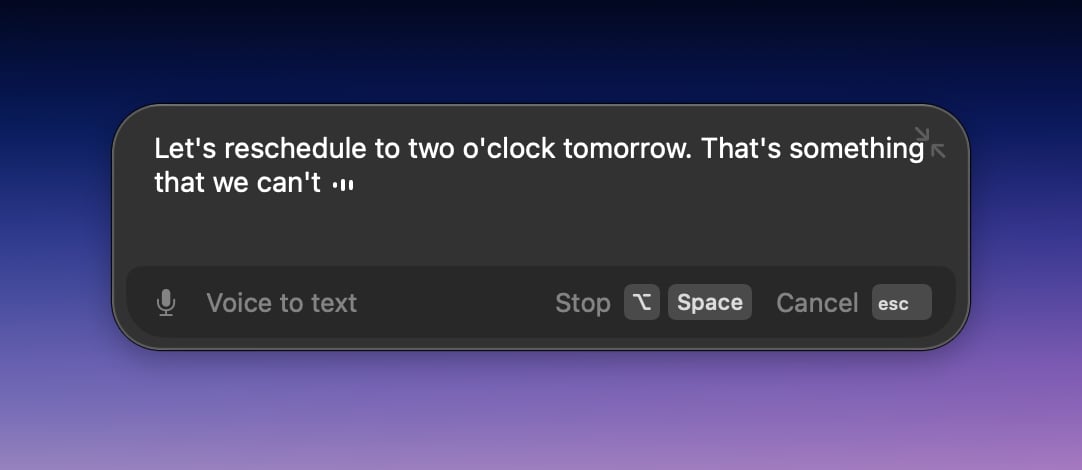
Switch modes from the window
Hold your Change Mode shortcut to open the mode list, then tap the key to cycle through modes: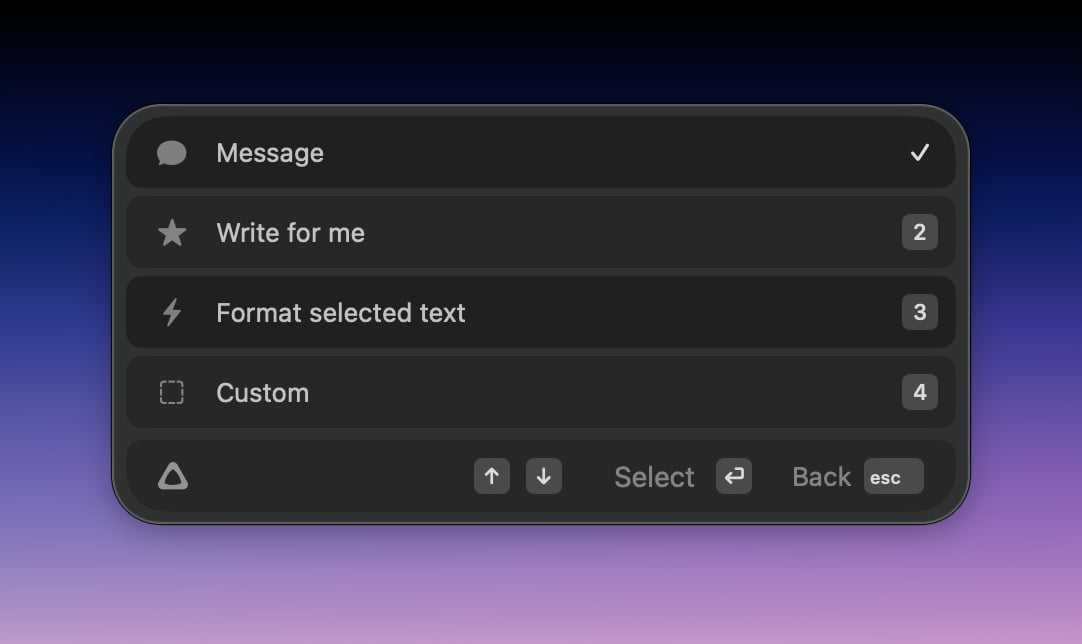
Mini recording window
The mini window is a compact version with the same core controls. Click the resize toggle to switch to it.- Keep it on screen: Superwhisper can keep the mini window visible as a small indicator. Hover over it to change mode, start recording, or expand to the regular window
- While recording: the mini window shows the waveform; hover to reveal a stop button
- Right-click the mini window for a context menu with Expand Window, Open Settings, and Open History
Related
Advanced Settings
Customize the recording window and mini window behavior.
Context Awareness
How Superwhisper uses your app, selection, and clipboard as context.