> ## Documentation Index
> Fetch the complete documentation index at: https://superwhisper.com/docs/llms.txt
> Use this file to discover all available pages before exploring further.
# Unable to Create Modes
> Resolve issues with creating or saving modes in Superwhisper.
## Overview
When you enable iCloud Documents syncing on your Mac, the Superwhisper folder may automatically move to iCloud. However, the application might still reference its original location. This mismatch prevents Superwhisper from creating new modes and can cause other functionality issues.
This mainly affects older installs where the Superwhisper folder lived in \~/Documents. The current default is \~/superwhisper in your home directory, which iCloud Documents syncing doesn't touch.
***
## Step-by-Step Process
Follow these steps to redirect Superwhisper to the correct folder location:
Access the Configuration section from the left sidebar menu in Superwhisper and go to "Advanced Settings."
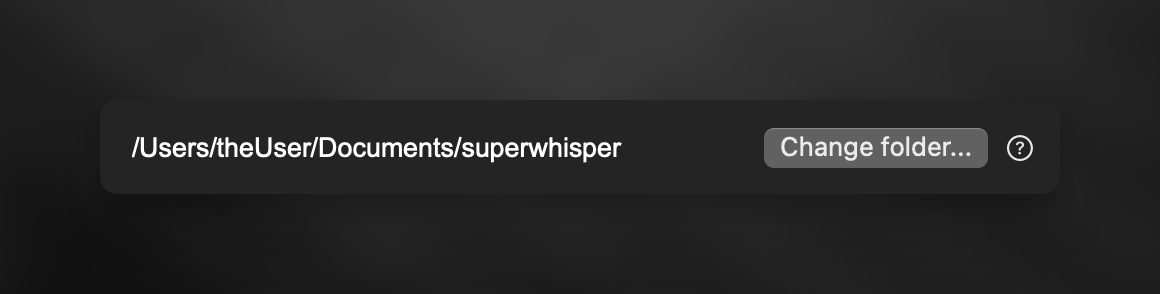
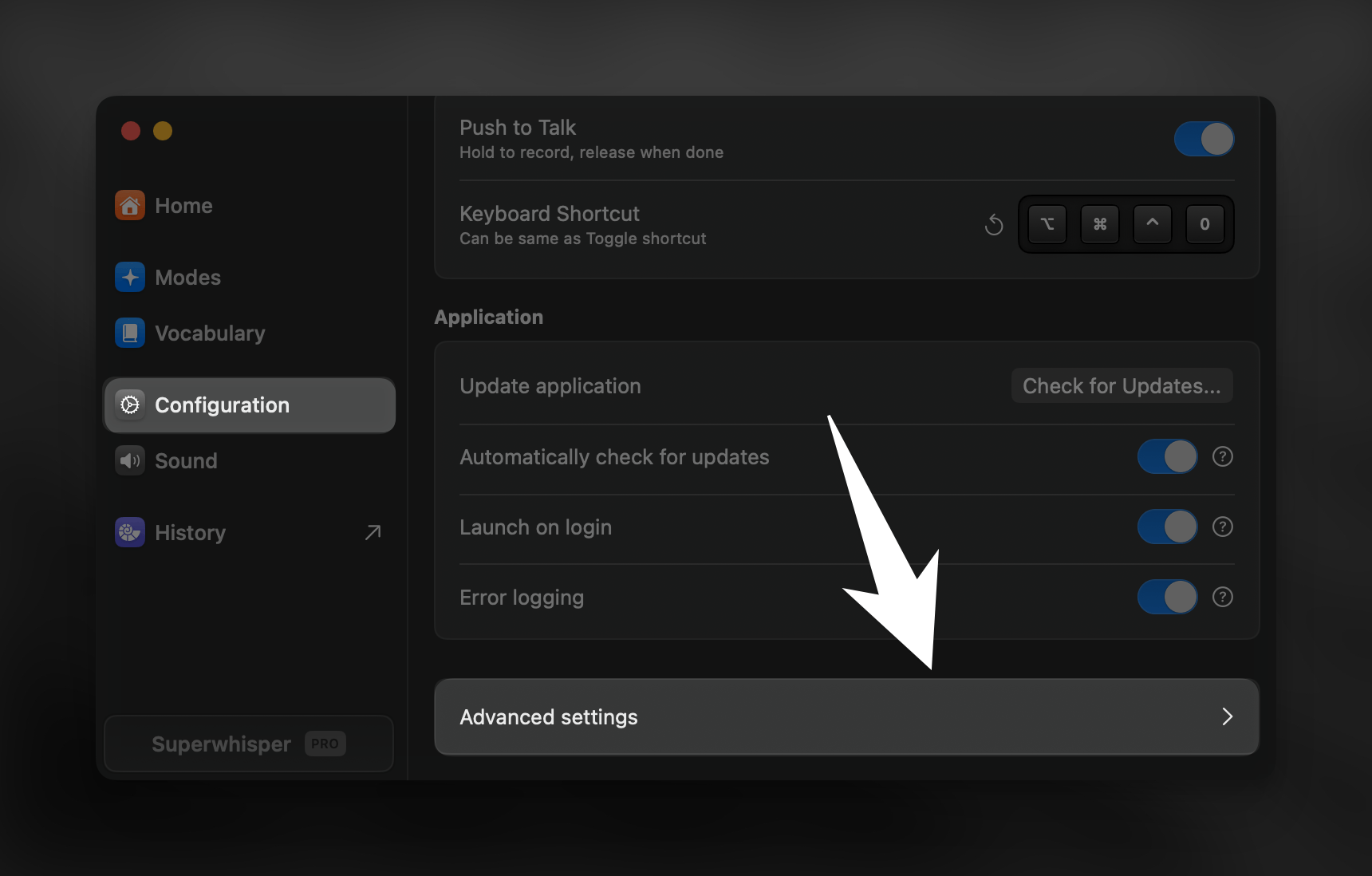 Scroll down to find the "Change Folder" option and click it.
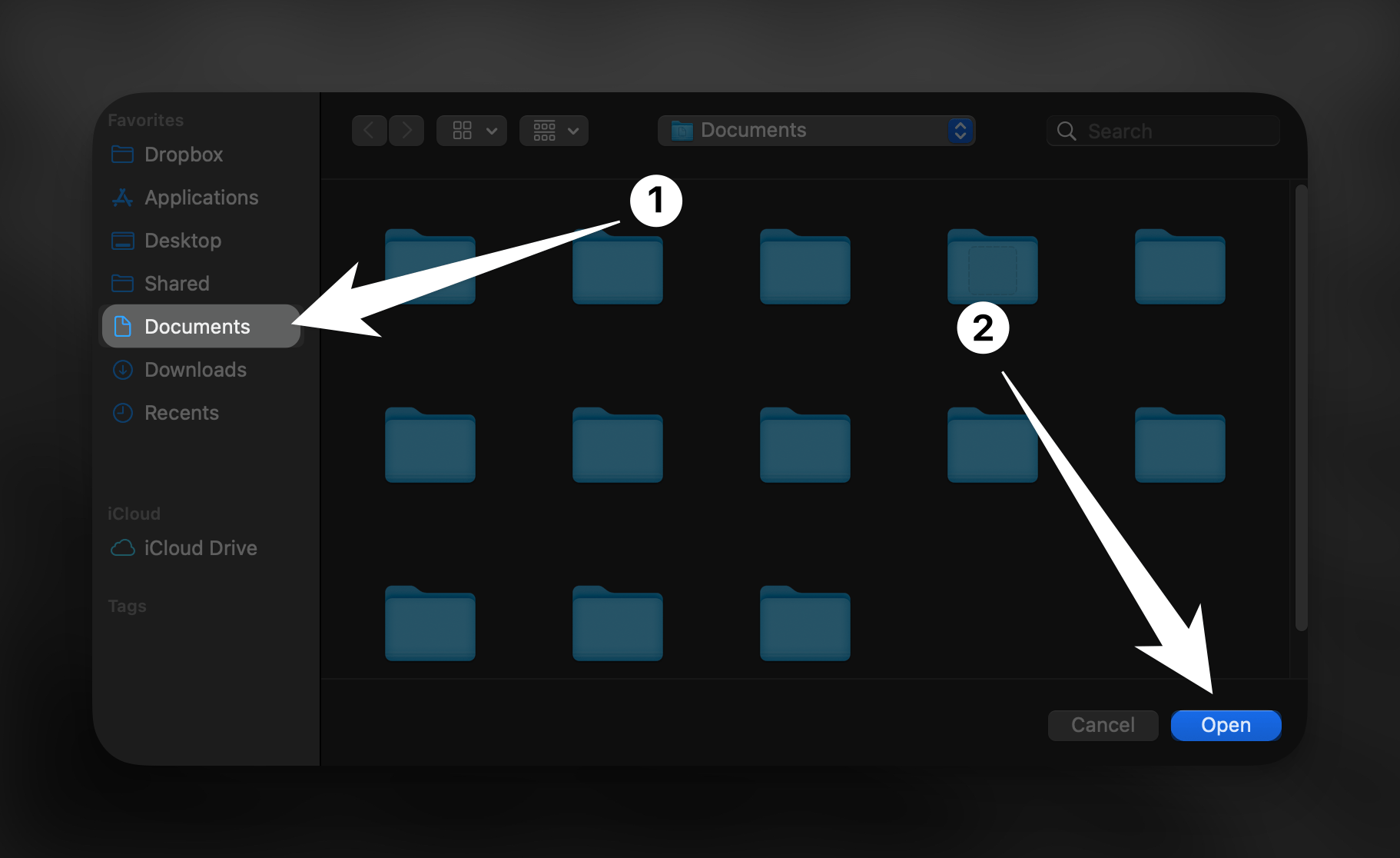
 In the file browser that appears, navigate to your home folder (or another location outside iCloud) and click "Open".
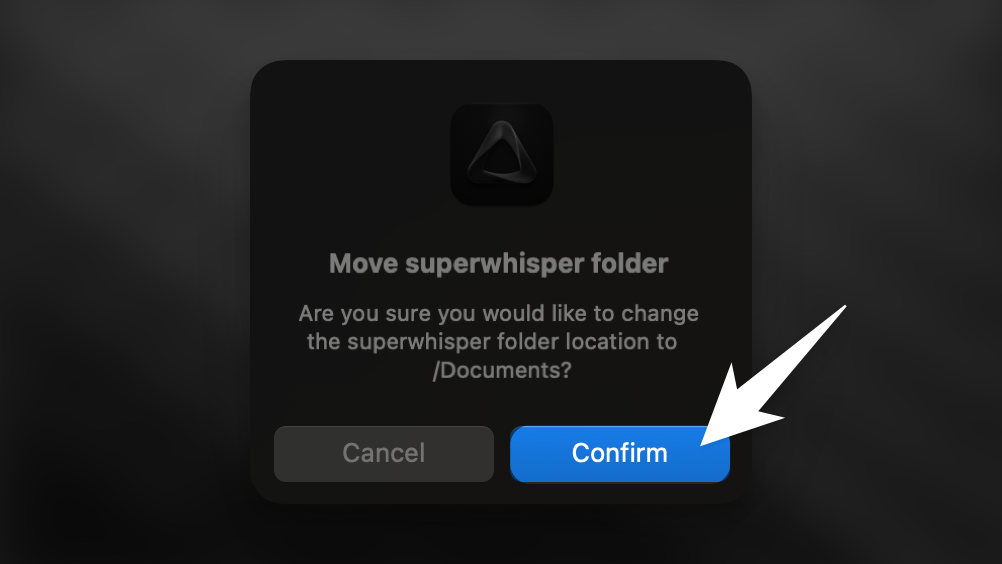
 Click "Confirm" in the dialog box to apply the folder location change.
 After completing these steps, Superwhisper will correctly reference the new folder location, allowing you to create new modes and use all features as expected.